Share Previews Updated
When sharing a playlist to social media (Facebook, Slack, LinkedIn, Discord, etc), the image that appears in the preview is now your profile picture.
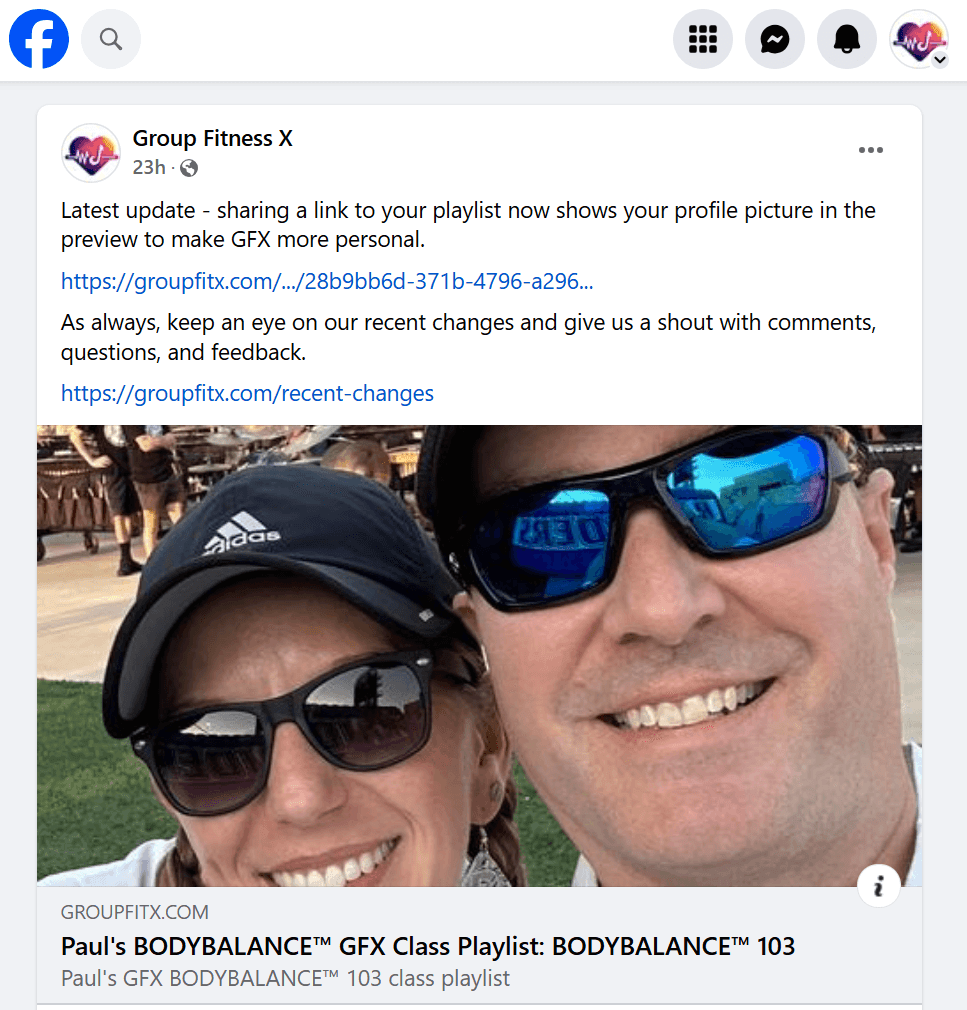
Personalized Share Images
Previously when sharing a playlist on social media, the link preview would show the GFX logo. Now when you share, we show your profile picture with a GFX watermark on the upper right-hand side. We like this because it brings the focus to where it should be - you.
How To Share a Playlist
To share a playlist, first create a playlist. You can do this by copying an existing playlist from the Community Feed on the home page by clicking the three dots (ellipsis) and choosing "Copy Playlist...". Or there's a convenient button on the bottom toolbar called "Create". Once your playlist is created, navigate to it in your Playlists by choosing Playlists either in the bottom toolbar or the upper left-hand menu (three lines) icon. Click or tap the newly created playlist. Then, make sure your playlist is allowed to be shared by toggling the slider on "Make playlist public". In the title bar of your playlist, click or tap the share icon and choose where you want to share your playlist. You can also copy a link to the playlist to your clipboard and share it wherever you want.